TechSuite POS App Overview
The TechSuite POS app is your in-store control centre. Staff can take and
manage orders, run the kitchen with KDS, monitor orders across POS, kiosk, and third-party channels, review order history, view reports, sell gift cards,
clock in/out, manage item/modifier availability (and pause third-party
storefronts), and maintain customer records.
In this section, we focus on two everyday workflows: Take Order and Time
Clock. Other modules are summarised in the POS Dashboard area and each with its own dedicated article.
How Licences and Profiles Work
When you create a device licence in the Portal, you choose one of these activation scenarios for that device:
- POS only: activate a POS Profile.
- KDS only: activate a KDS Profile.
- POS + KDS on the same device: activate both POS and KDS profiles together.
- General: Back-office access only. No POS or KDS. Use when the device is just for viewing/managing Orders, Customers, and Reports no printers or payment terminals attached.
The licence grants the entitlement to run the selected module(s). The attached profile(s) control behaviour, appearance, sales types, printing, and other device-specific settings.
For step-by-step sign-in and device activation, see Sign In & Activate the POS App.
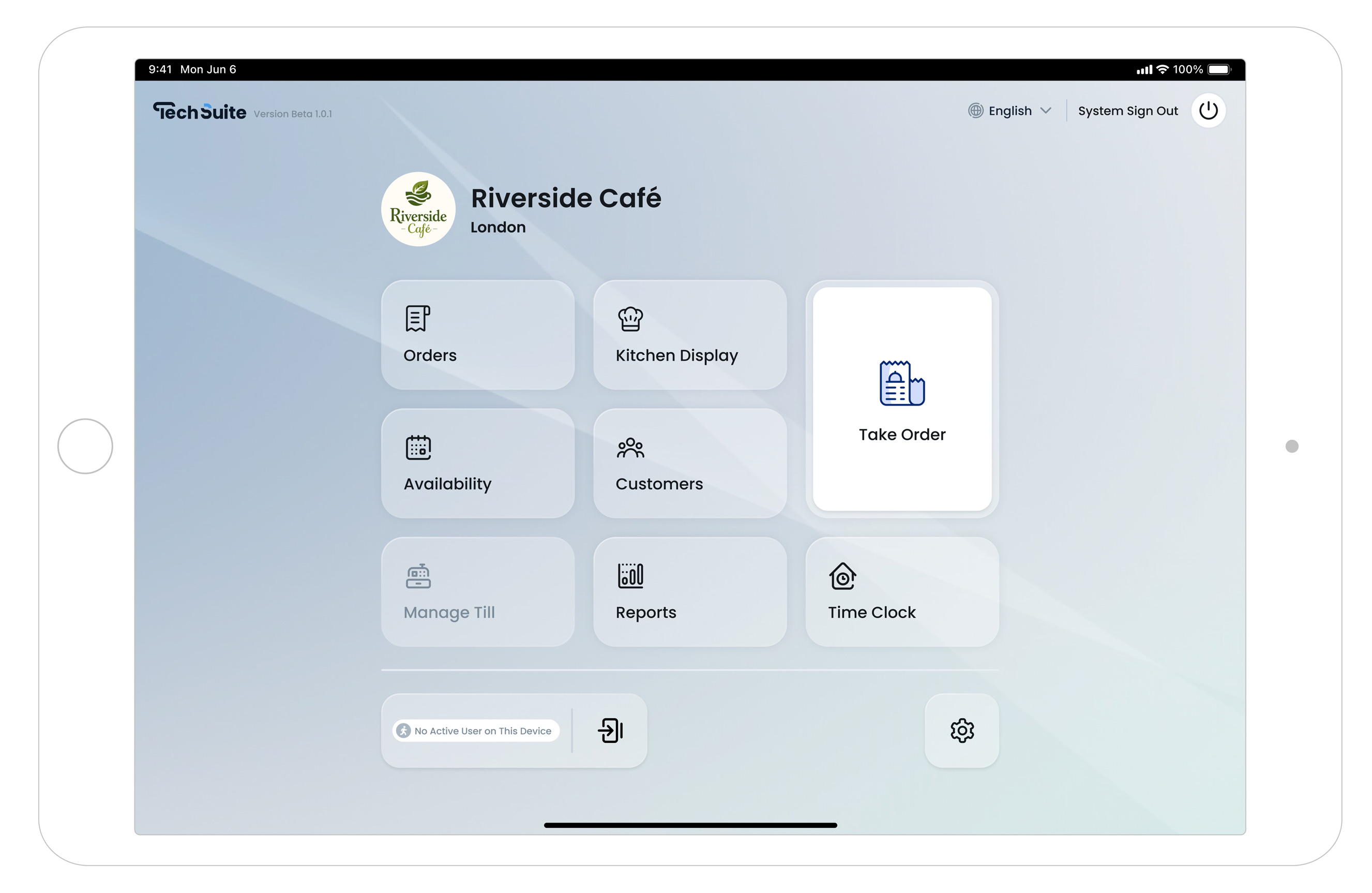
POS Home: Modules at a Glance
- Take Order: Start and complete sales, apply modifiers, assign customers, add promotions, and take payment.
- Orders: View active orders and order history from POS, kiosk, and third-party channels.
- Kitchen Display: TechSuite’s integrated KDS for routing and managing preparation.
- Availability: Pause or hide items/modifiers in real time, and optionally pause third-party channels.
- Customers: Look up customers, attach to orders, or add new profiles.
- Reports: High-level sales and performance snapshots on device.
- Time Clock: Staff clock in/out using their passcode.
- Settings: Device, language, and session controls.
Pro Tips
- Manage from anywhere: Availability, Customers, and Orders exist both in the POS app and in the TechSuite Management Portal.
- Licensing matters: The device must have the correct licence scenario enabled (e.g., POS only, KDS only or POS+KDS) for those modules to work on that terminal.
- One device, the right role: You can change the active scenario later by updating the licence and attached profile(s) in the Portal.