Create a New Promotion - Purchase Deal
A Purchase Deal applies a discount based on a quantity offer,
for example, “Buy 1 Get 1 Free” or “Buy 1 Get 1 with 50% Off.”
This type of promotion is great for encouraging bulk purchases, clearing stock, or creating special combo offers.
To Get Started
To create this type of promotion, log in to the TechSuite portal, go to Inventory > Promotions, and click Create New Promotion.
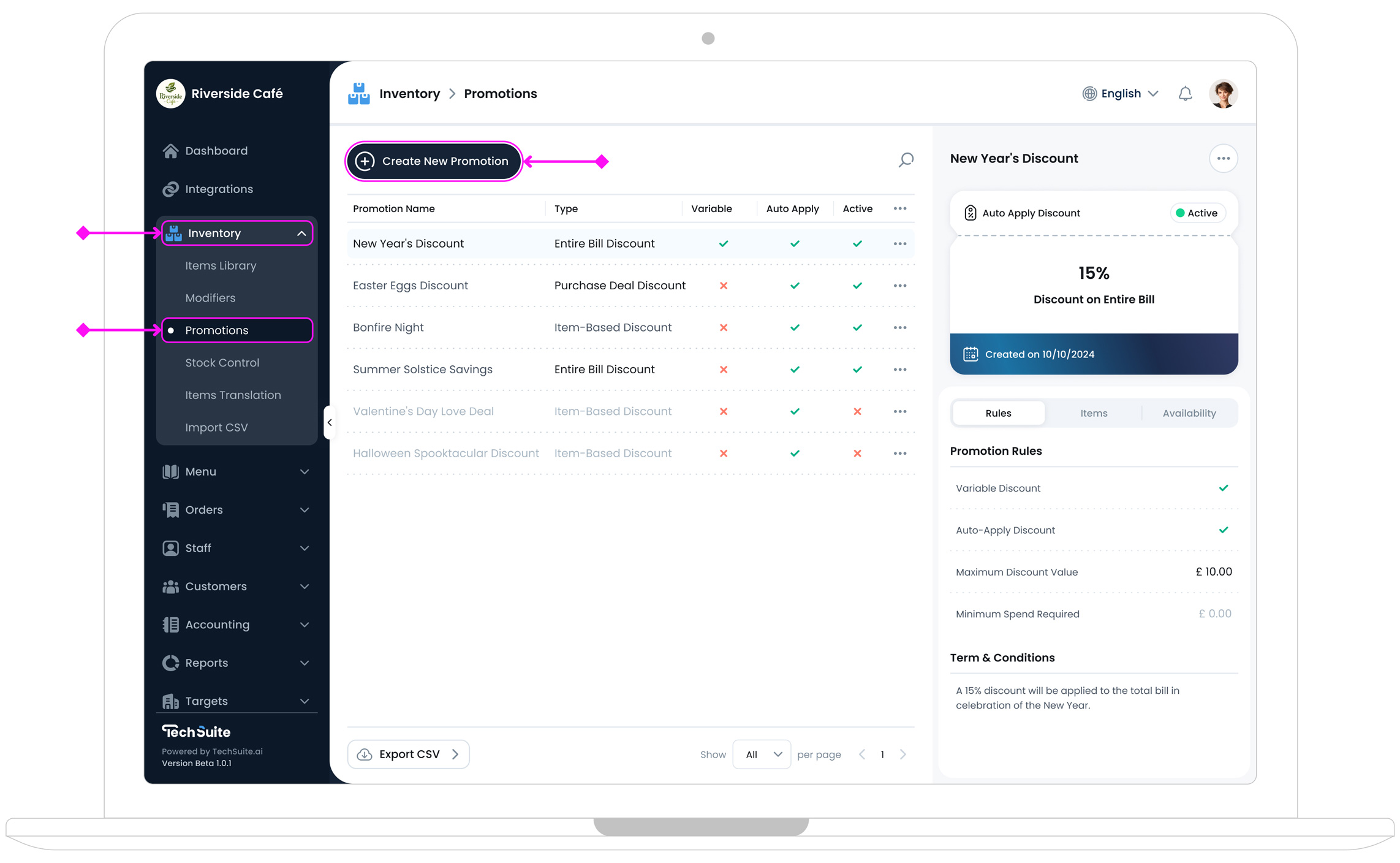
Step 1: Enter Promotion Info
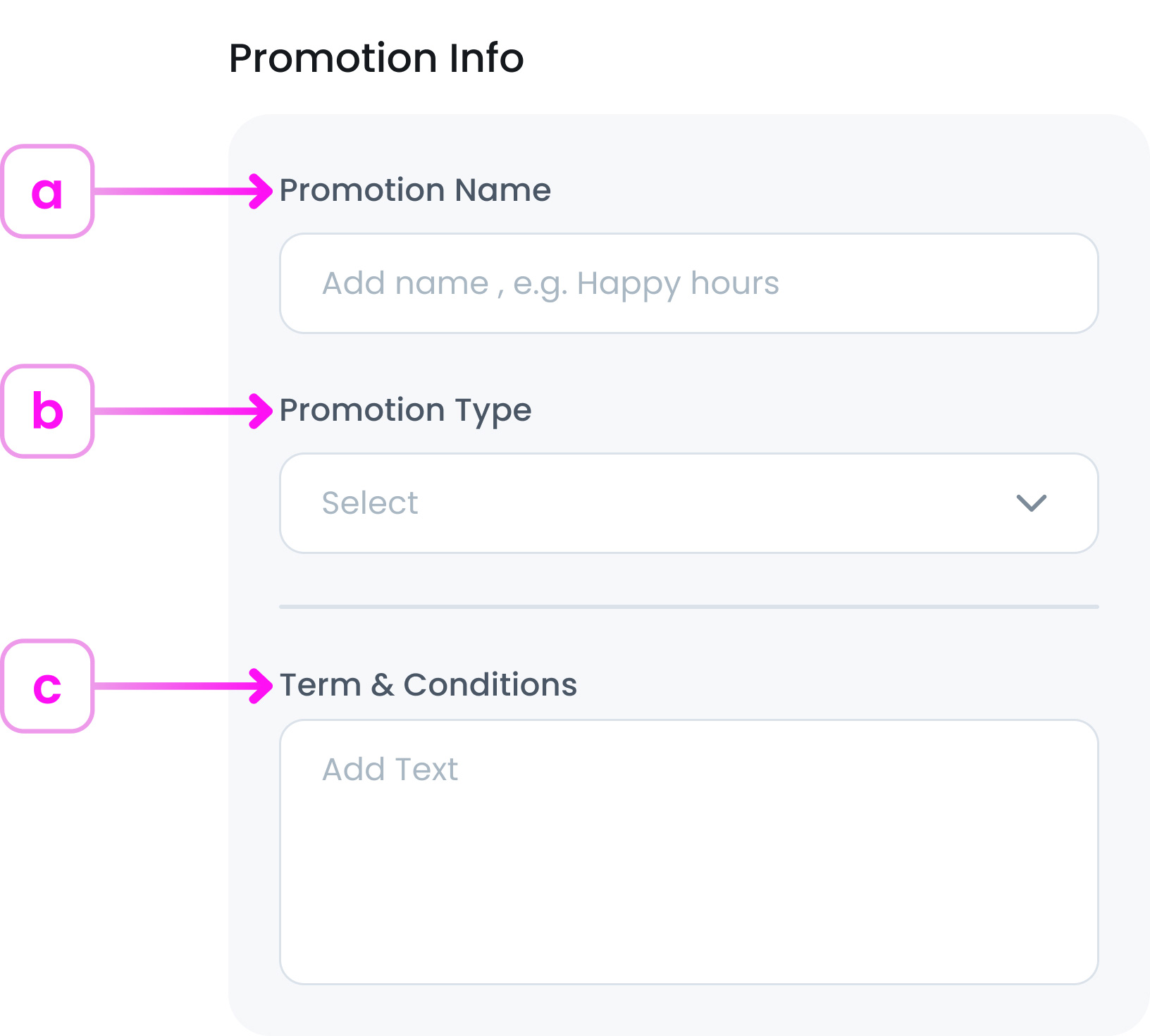
a. Promotion Name
Enter a clear, descriptive name for your promotion.
Examples:
- “Buy 1 Get 1 Free”
- “Buy 2, Get 1 Half Price”
b. Select Promotion Type
From the Promotion Type dropdown, choose Purchase Deal.
c. Terms & Conditions (Optional)
Add any rules or restrictions for this promotion.
Examples:
- “Valid for takeaway only”
- “Not valid with other discounts”
- “Lowest-priced item is discounted”
Step 2: Set Promotion Rules
a. Purchase Deals Types
Purchase Deal rules define how the offer will work for your customers.
You can choose between two deal types:
- Option 1: Buy [X], Get [Y] Free: Customers receive extra items for free when they buy a certain quantity.
- Option 2: Buy [X], Get [Y] with (%) Off: Customers get extra items at a discounted price or percentage when they buy a certain quantity.
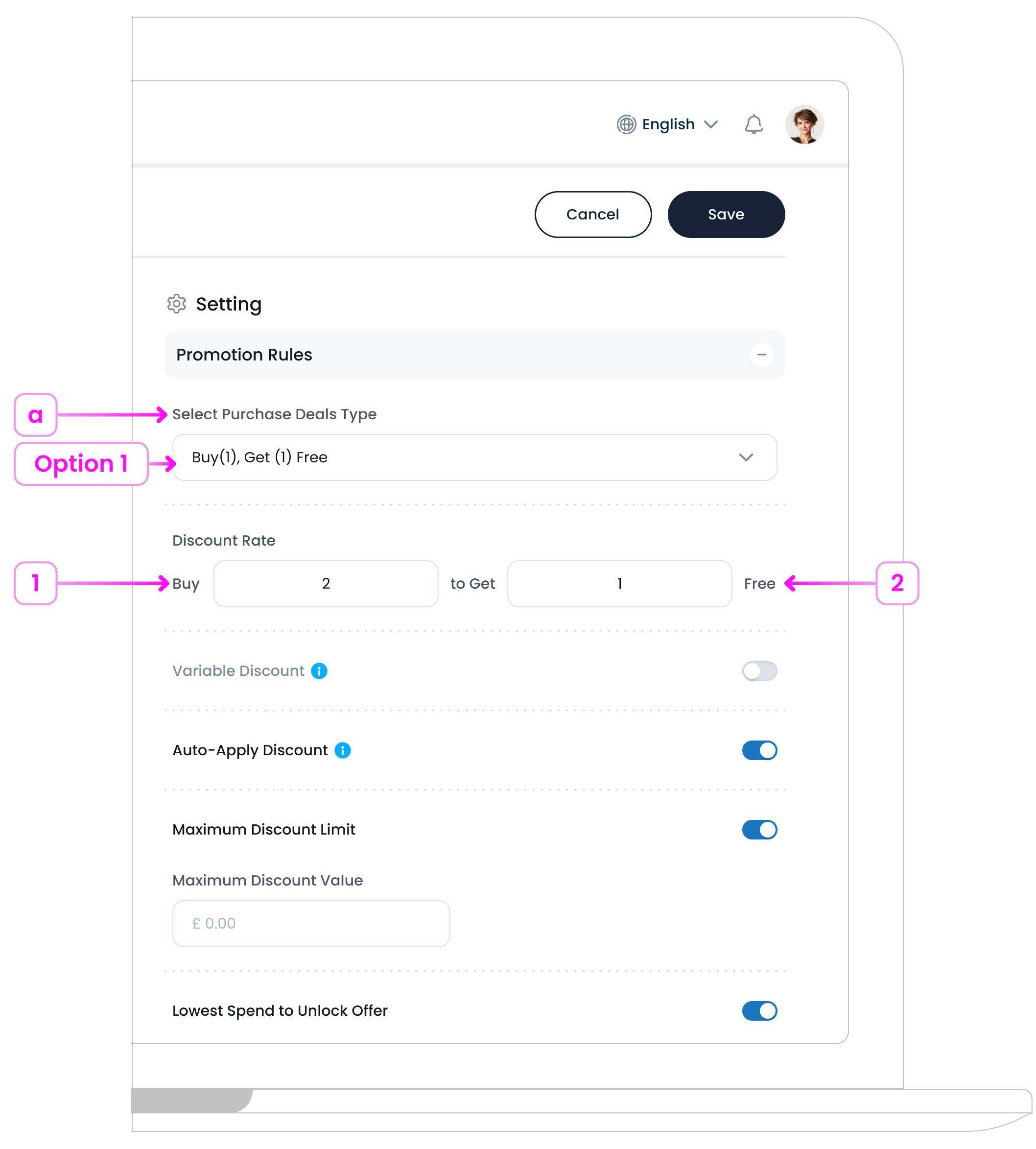
Option 1: Buy [X], Get [Y] Free
This deal gives customers extra items completely free when they buy the required amount.
1. Buy:
Enter how many items a customer must purchase to trigger the offer. (Example: 2)
2. Get:
Enter how many additional items the customer receives for free. (Example: 1)
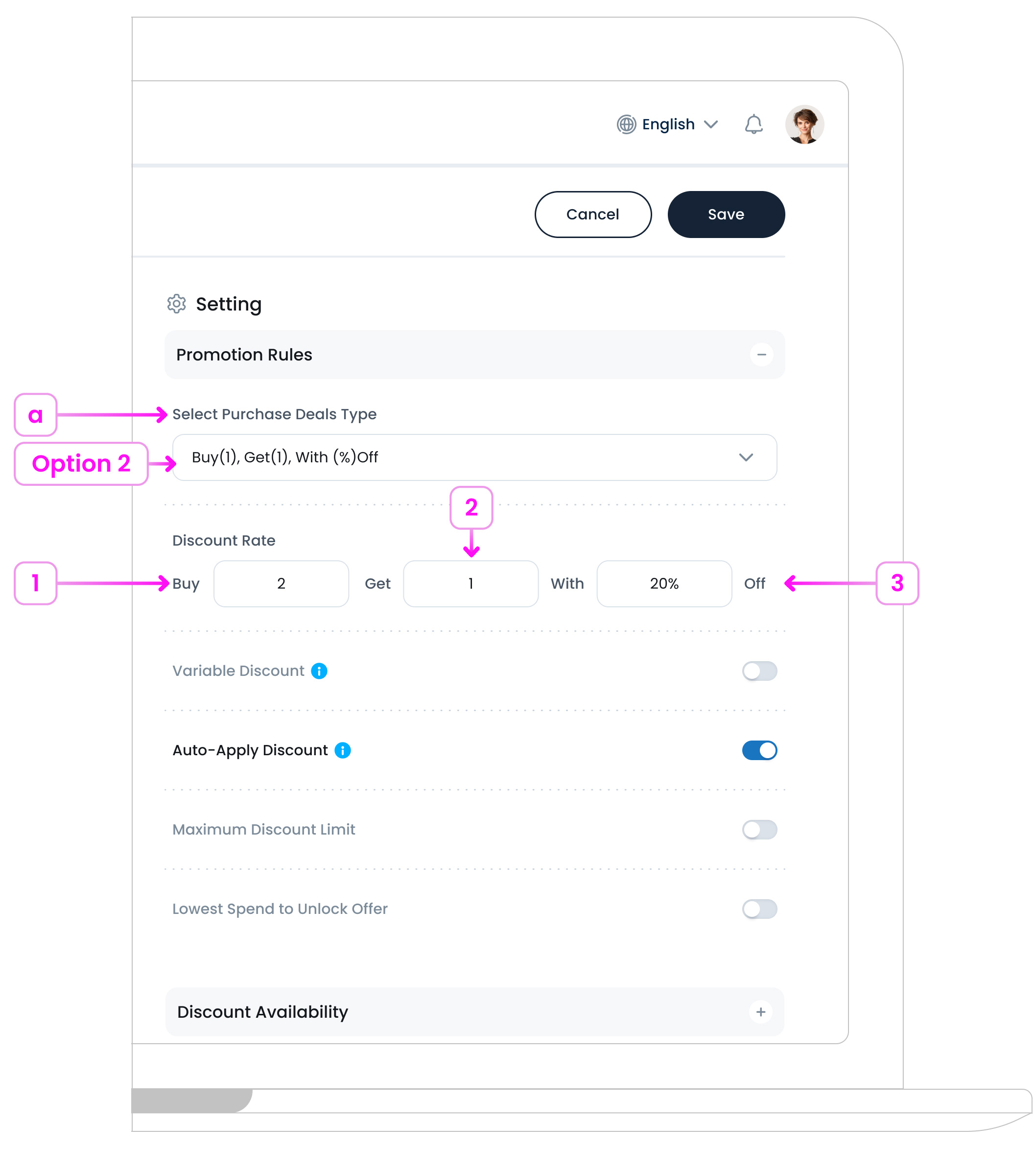
Option 2: Buy [X], Get [Y] with (%) Off
This deal gives customers extra items at a reduced price when they buy the required amount.
1. Buy:
Enter how many items a customer must purchase to trigger the offer. (Example: 2)
2. Get:
Enter how many additional items the customer receives at a discount. (Example: 1)
3. With:
Enter the discount for the “Get” items. This can be a percentage (Example: 30%) or a fixed amount (Example: £2.00).
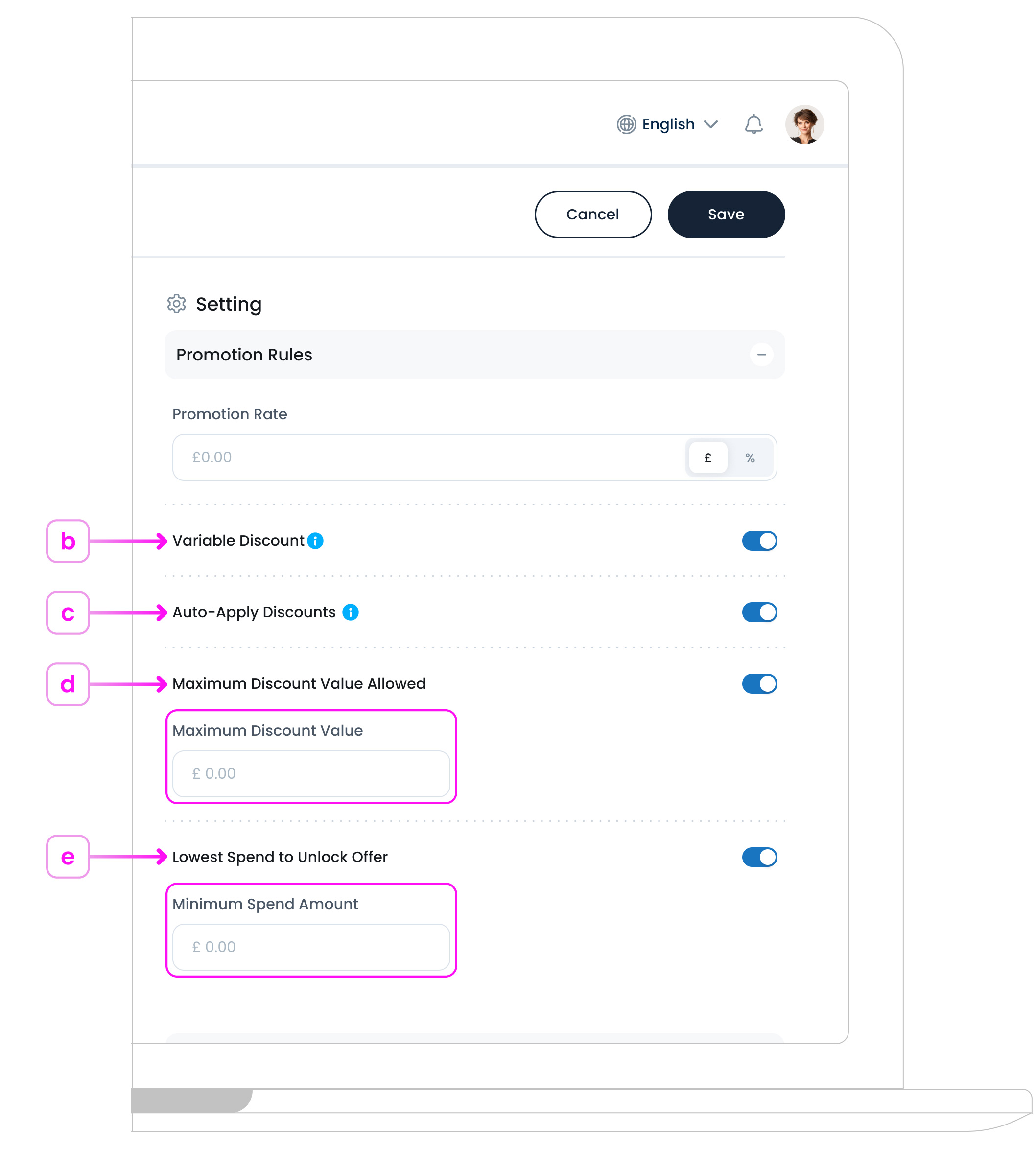
b. Variable Discount
A Variable Discount is a discount amount that can change depending on specific conditions. For example, the discount could be different based on:
- The quantity purchased
- The customer’s membership level
- The time of day the purchase is made
- Any other rules set by your business
This gives you more flexibility compared to a fixed discount.
c. Auto-Apply Discount
When this option is turned on, the system will automatically apply the discount if the customer meets certain conditions.
Examples of these conditions:
- Having a specific item in the basket
- Reaching a certain minimum order value
- Buying during a specific time period (like happy hour)
This makes the checkout process easier, avoids manual errors, and can encourage customers to qualify for the discount, helping increase your sales.
d. Maximum Discount Limit
This is the highest total discount allowed per order.
Why it’s useful:
- Prevents giving away too much when multiple offers are active
- Keeps control over your promotion costs
When you turn this on, a text field appears where you can type in the maximum amount you want to allow.
e. Lowest Spend to Unlock Offer
Set the minimum amount a customer must spend before they can get the discount.
Why it’s useful:
- Encourages customers to buy more to qualify
- Helps boost your average order size
When you turn this on, a text field appears where you can type in the minimum spend amount.
Step 3: Set Discount Availability
Promotion Availability controls when the promotion is available for use (like specific days, seasons, or time periods). This applies to:
- In-store
- Delivery
- Takeaway
- Or any other sales types you’ve added in the system settings
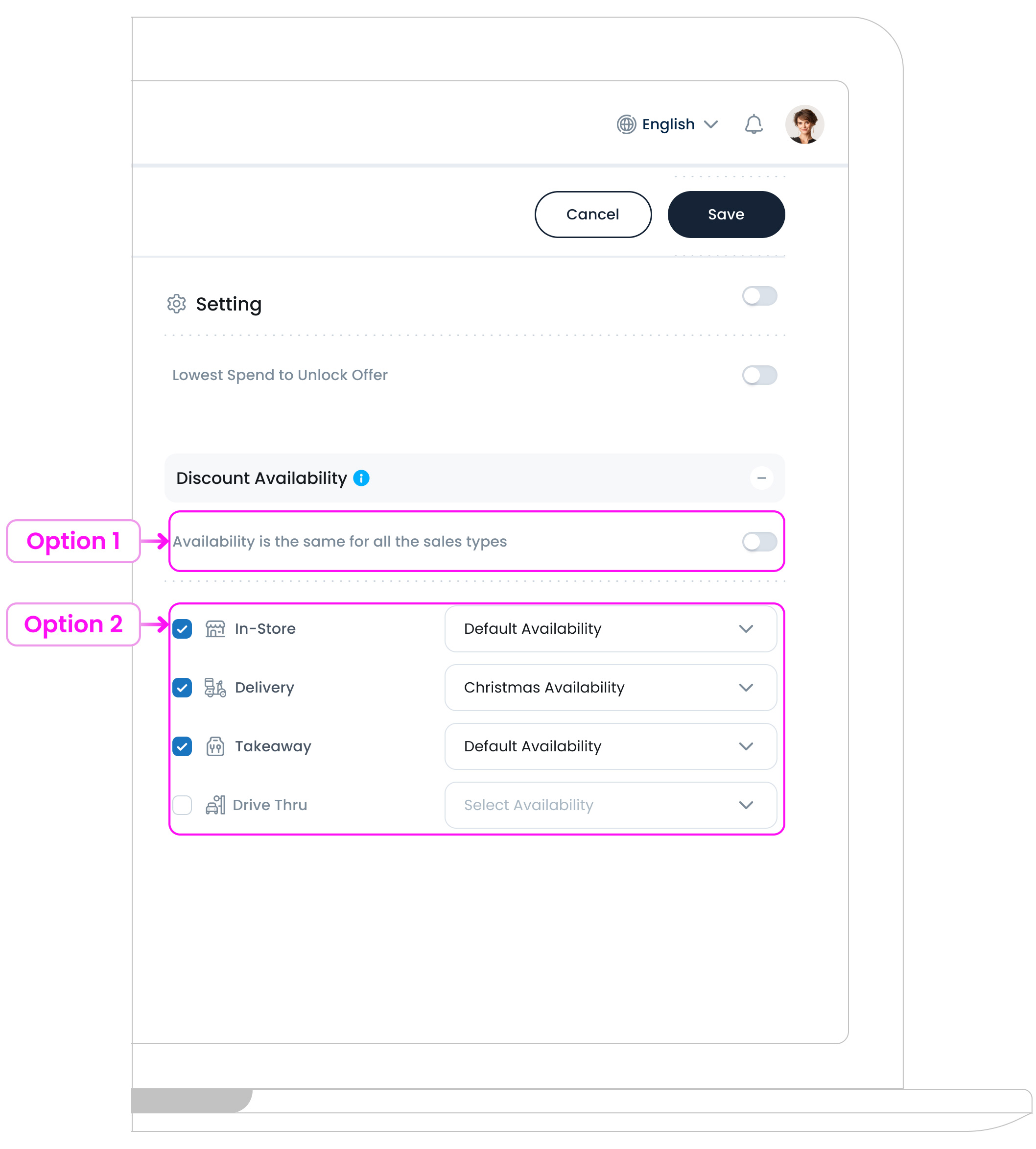
Option 1: Same for All
Toggle ON the “Availability is the same for all the sales types” option to apply a single availability setting across all sales types.
Option 2: Custom Per Sales Type
Leave the toggle OFF to set different availability per sales type (e.g., Morning Offer Promotion available in-store but not for delivery).
You’ll see a dropdown for each sales type where you can choose a predefined availability set, like General Availability or other pre-set availability.
Click the eye icon  next to a set to preview the detailed hours (e.g., Monday to Sunday, 07:00–23:00).
Step 4: Add Discountable Items
For Item‑Based and Purchase Deal promotions, you must select which products are eligible. The promotion won’t activate until at least one item is connected.
Example:
You might include all coffee drinks (Latte, Americano, Cappuccino) for a morning offer, all pizzas for a weekend deal, or everything in a “Desserts” category for an evening special. Selecting only the items you want ensures the discount applies exactly where intended.
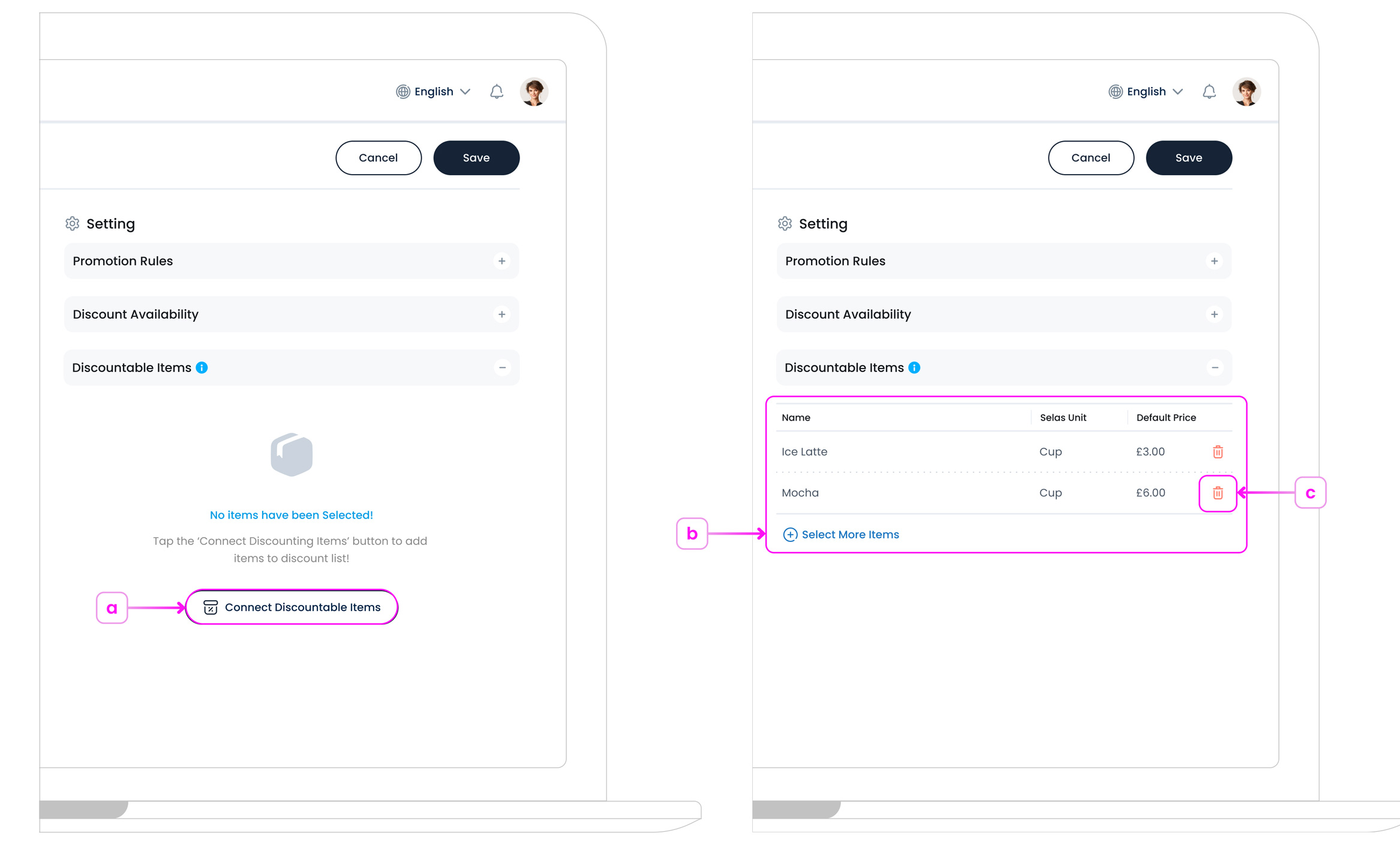
a. Select Items to Include
Click Connect Discountable Items, then choose the products you want to receive the discount.
b. Add More Discountable Items
Click Select More Items to add additional products to the discount list at any time.
c. Remove Items from Discount List
Use the trash icon to remove an item from the discount list if you change your mind.
Step 5: Save
When everything looks right, click Save  at the top-right.
Your new Purchase Deal will now appear in your promotions list and will work exactly as you set it up.
What’s Next?
Now that you’ve set up this promotion, you can start using it in your POS system. If the Auto-Apply option is turned off, staff will need to manually apply the discount during checkout in the POS. This gives you more control over when and how the discount is used, making it ideal for special situations or when only certain customers qualify.
For a full guide, see Applying Discounts in POS.